Publish your first post
A post moves through exactly four states: draft → queued → live | failed. Nothing publishes without an explicit confirmation - Compose always shows a plan before it creates anything, the same invariant the API (POST /posts/plan before POST /posts) and MCP (dropslate_plan_post before dropslate_create_post) enforce. This page walks through a first, deliberately safe post and how to confirm it on the network.
Before you start
Section titled “Before you start”- One connected account with the status Connected - Choose your first network.
- One file in Media with the status
ready, or a file on your computer that fits the network - Media requirements. - For a safe test: on YouTube set Visibility to Unlisted or Private; on Instagram, Facebook and Threads a test post is public the moment it is live, so plan to delete it on the network afterwards.
-
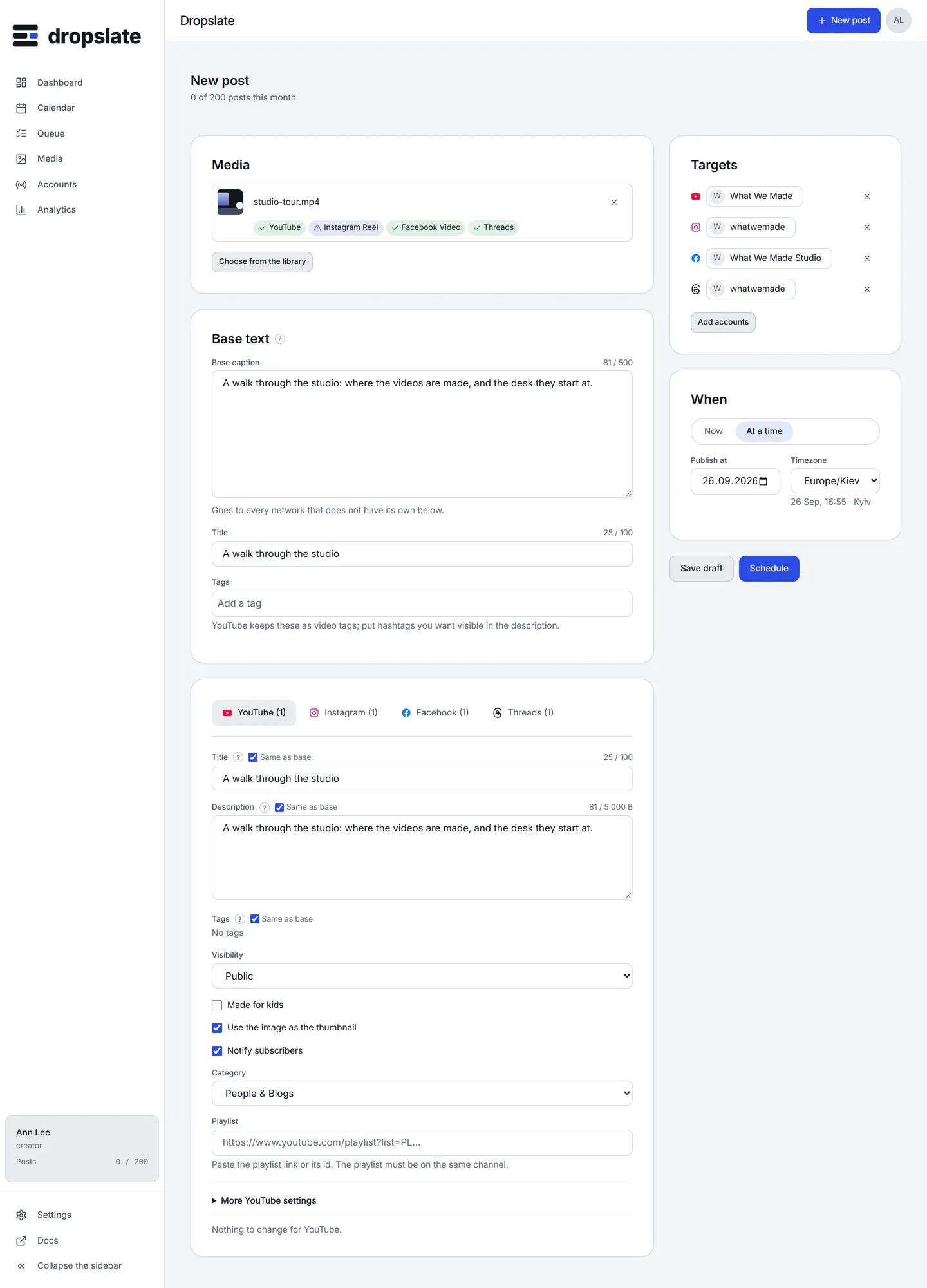
Click New post. Under Media, drop a file or click Choose from the library. The card shows the file’s shape, duration and size, and one verdict per target network once you pick targets.
-
Write the Base caption. It goes to every network unless a network’s tab overrides it. Add Tags if the network uses them - YouTube keeps them as video tags, Instagram and Facebook write them into the caption as hashtags, Threads takes one topic instead.
-
Under Targets, pick the account, or a group. A tab appears for each network among the targets, with only the fields that network accepts: YouTube asks for a Title and a Visibility; Instagram for a Content type (Reel, Post, Carousel, Story); Facebook for a content type and, for a text post, a Link; Threads for a Topic.
-
Under When, choose Now or At a time and pick a date and time. Times are read in the workspace’s time zone, shown next to the field; a scheduled time must be at least 2 minutes ahead and at most a year out.
-
Click Schedule (or Publish now). The Plan dialog opens: one row per account with the network, the time and a check -
ok, or the code and message of what would fail. Nothing has been created. Read the rows, then click Confirm.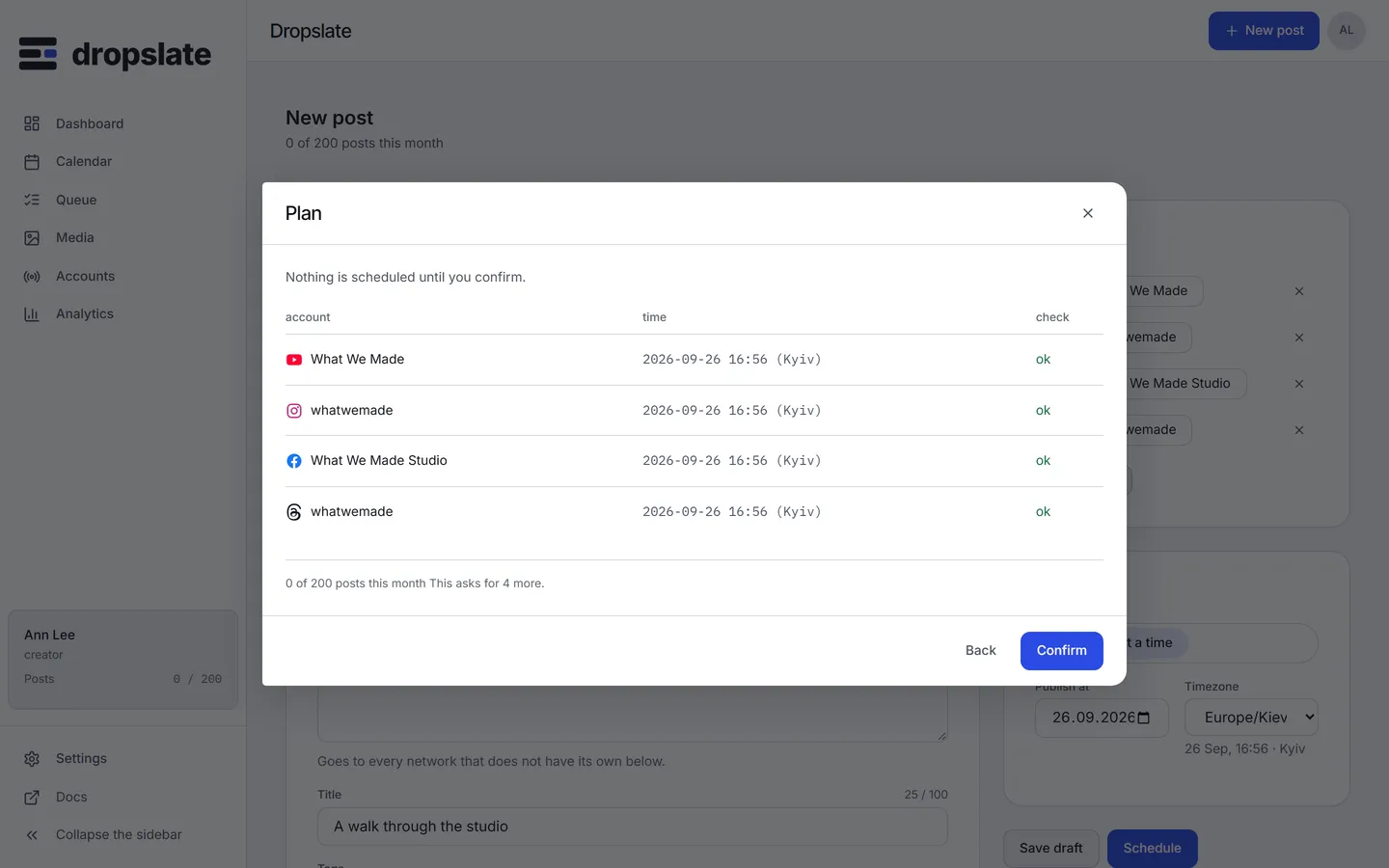
What you see next
Section titled “What you see next”Dropslate answers Queued: 1. and the post is in Queue as queued, and on Calendar at its slot. At the time, the worker sends it. Within a minute or two the row becomes live with View it live - open it and check the post on the network itself - or failed with What the network said. A YouTube video scheduled for later is created on the channel immediately as scheduled and goes public at the time by YouTube’s own clock.
Common errors
Section titled “Common errors”| Error | Cause | Fix |
|---|---|---|
A plan row shows caption_too_long, title_too_long or tags_too_long |
Over the network’s limit in its unit. | Shorten the field; the counter in that network’s tab shows the unit. |
A plan row shows aspect_unsupported or media_kind |
The file’s shape or kind is not accepted for that content type. | Choose another content type (a video goes to Reel, not Post) or another file. |
media_not_ready |
The file is still processing. |
Wait for ready; do not upload it again. |
publish_in_past or publish_too_far |
The time is less than 2 minutes ahead, or more than a year out. | Pick a time inside that window. |
quota_exceeded |
The monthly post limit is reached. | Wait for next month, or upgrade - Plans & pricing. |
failed after the scheduled time |
The network rejected the send. | Read the network’s message in the post, fix the cause, click Retry - Why did my post fail? |
Related
Section titled “Related”- Compose - every field and tab.
- Post statuses and Retry & cancel.
- Plan your first week.