

Uploading
What this is
Section titled “What this is”A file always lands in the media library first, with an id and a status, and is only referenced by that id afterward - a post never carries raw bytes, only a mediaId. Two ways to add one: upload bytes directly - in the dashboard or through the API - or, through the API and MCP, import from a public URL.
Direct upload
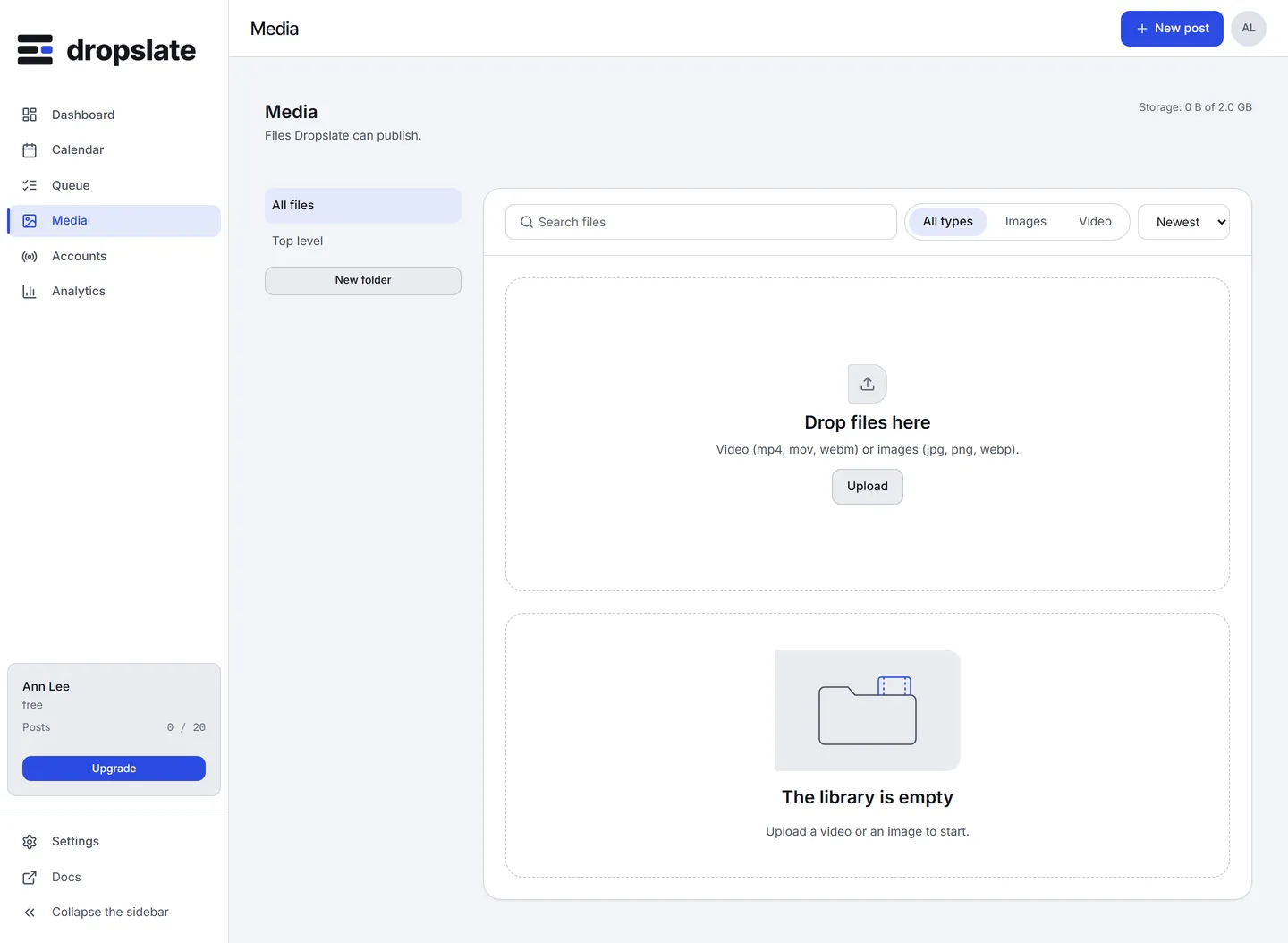
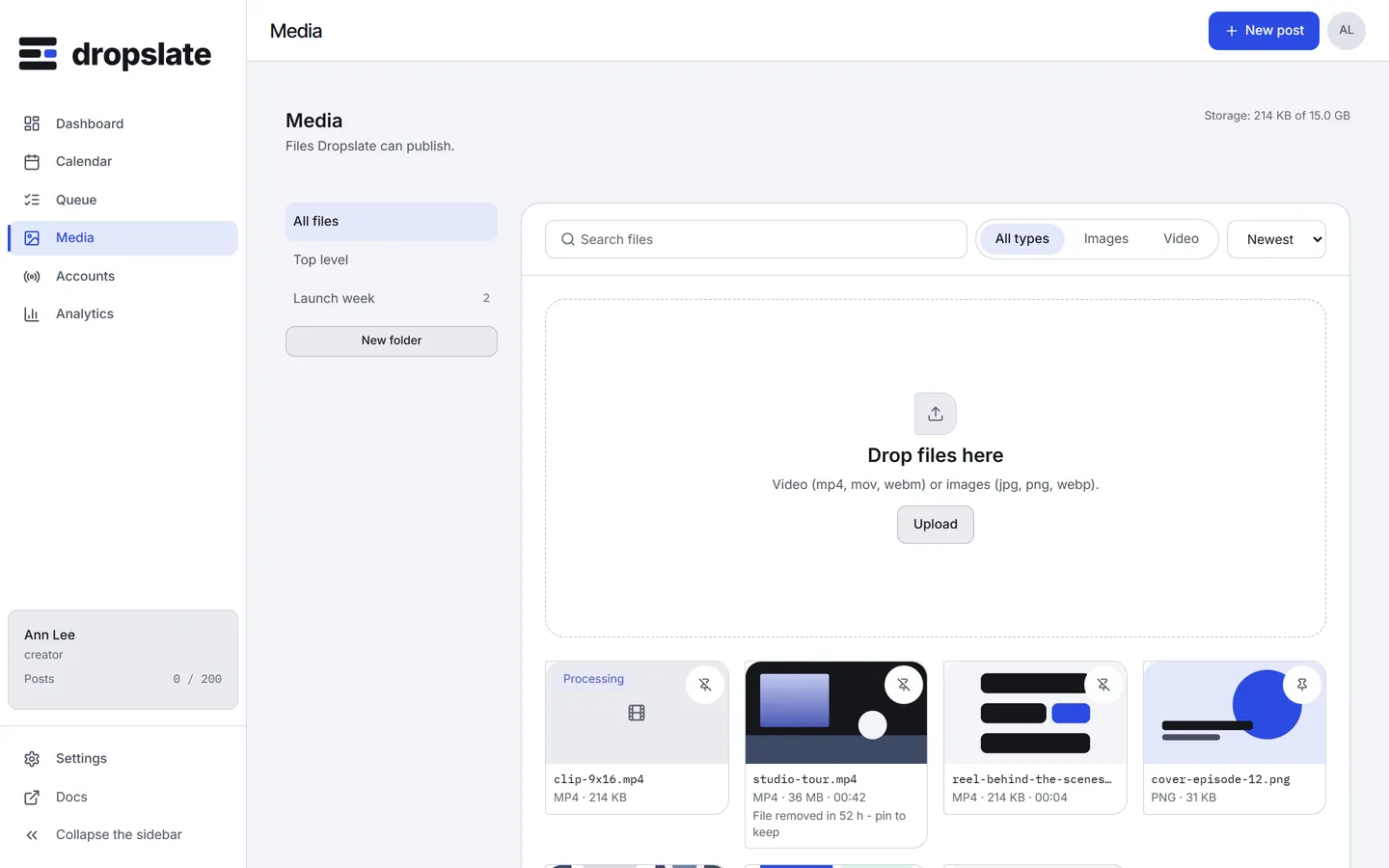
Section titled “Direct upload”- Drop a file in Media, or in Compose while writing a post.
- The dashboard reserves an id and a one-time upload URL, then
PUTs the bytes directly to it. - The file’s status moves
uploading → processing → ready(orfailed, with why). A video gets a thumbnail and duration probed duringprocessing.
The same two-step shape is exactly what the API’s POST /media/uploads and the MCP tool dropslate_create_upload do - see API reference → Media or MCP → Tools reference.
Import from a URL
Section titled “Import from a URL”The dashboard has no URL import; it is part of the API and MCP - POST /media/from-url or the tool dropslate_upload_from_url with a public https link. The server fetches it directly - private and internal addresses are refused, redirects are followed up to a limit, and the same size and format checks apply as a direct upload.
Common errors
Section titled “Common errors”| Error | Cause | Fix |
|---|---|---|
Status stuck on processing |
Large file still being probed. | Wait - poll status, don’t re-upload. |
Status failed |
Format not accepted for the file’s kind, or the file is corrupt. | Check the accepted formats on the target network’s platform page, fix the file, upload again. |
| Import from URL refused | The URL is private, internal, or not https. |
Use a public https URL, or upload the file directly instead. |